Your Hisense TV screen works perfectly, but there’s no sound coming through your soundbar or home theater system. You’ve checked the optical cable connection twice, maybe three times, but still nothing. This situation can be incredibly frustrating, especially when you just want to sit down and enjoy your favorite show with quality audio.
Before you start thinking about expensive repairs or replacements, you should know that optical output problems are often simple to fix at home. Most cases stem from settings mishaps, cable issues, or minor glitches that require nothing more than a few minutes of your time.
This guide will walk you through everything you need to understand about optical output problems on your Hisense TV and show you practical ways to get your audio working again without calling a technician.
What’s Really Happening When Your Optical Output Stops Working
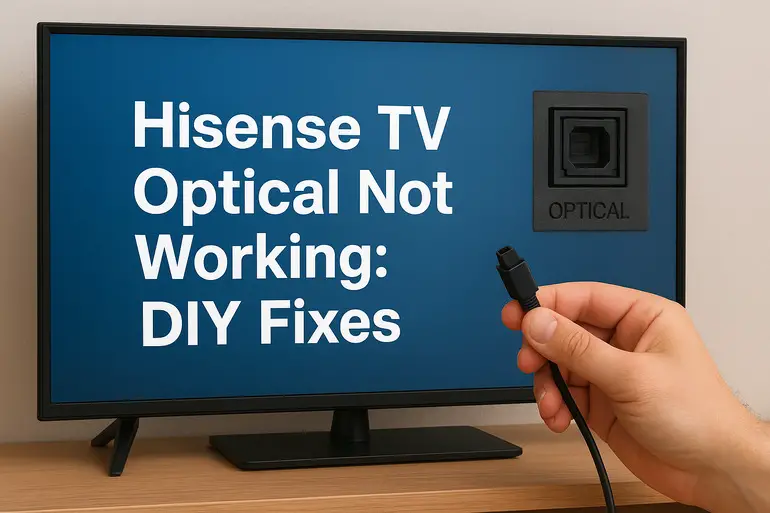
Your optical port uses light signals to transmit audio from your TV to external devices like soundbars, receivers, or speaker systems. When this connection fails, you’ll notice complete silence from your external audio setup, even though your TV’s built-in speakers might still work fine.
The optical cable itself carries digital audio signals through fiber optic technology. This means tiny pulses of light bounce through the cable to deliver sound data. Any interruption in this light transmission breaks the entire audio chain. Sometimes you might see a red or orange light glowing at the cable’s end, which confirms the port is sending a signal. Other times, that light disappears completely.
Your TV tries to route audio through whatever output you’ve selected in the settings menu. If something goes wrong with the optical output selection or if the TV doesn’t recognize your connected device, it simply won’t send audio through that port. The TV assumes you want sound from somewhere else, or it gets confused about where to send the audio signal.
Many people assume their hardware is broken when the real culprit is usually a software setting or a connection issue. Physical damage to optical ports is actually less common than you might think. Your Hisense TV’s firmware controls how audio gets distributed, and sometimes that software needs a little help getting back on track.
Hisense TV Optical Not Working: Common Causes
Several factors can interrupt your optical audio connection, and identifying the right one saves you time. Let me break down what typically goes wrong with these setups and why your audio suddenly stopped working.
1. Wrong Audio Output Settings
Your TV menu contains audio output options that determine where sound goes. If your Hisense TV switches to internal speakers or a different output mode, the optical port becomes inactive. This happens more often than you’d expect, especially after software updates or power outages.
TVs sometimes reset to default settings without warning. Your carefully configured audio preferences can vanish after a firmware update, leaving you scratching your head about why everything stopped working. The TV simply reverts to what the manufacturer programmed as the standard setup.
2. Faulty or Damaged Optical Cable
Optical cables look sturdy, but they’re actually quite delicate inside. The fiber strands that carry light signals can break if you bend the cable too sharply or step on it accidentally. Even a small crack in the cable’s core disrupts the entire signal path.
You might not see visible damage on the outside. The protective coating can look perfectly fine while the internal fibers are shattered. This makes cable problems tricky to diagnose just by looking. Physical stress points near the connectors are especially vulnerable to internal damage.
Dust and debris can also block the light transmission. When particles settle inside the optical port or on the cable’s tip, they create barriers that prevent light from passing through properly. Your connection becomes unreliable or stops working altogether.
3. Firmware Glitches
Software bugs in your TV’s operating system can disable the optical output function. These glitches appear after updates or sometimes develop randomly as the TV runs for extended periods. Your TV’s processor manages audio routing through complex code, and occasionally that code hits a snag.
Temporary memory issues can confuse the audio management system. The TV might forget which output you selected or fail to recognize connected devices properly. These aren’t permanent problems, but they need specific actions to clear out.
4. Disabled Audio Format Compatibility
Your soundbar or receiver expects audio in certain formats like PCM, Dolby Digital, or DTS. If your Hisense TV tries to send an incompatible format through the optical cable, your receiving device simply rejects it. This mismatch results in complete silence even though the connection appears physically sound.
Format conflicts happen frequently with streaming content. Different apps and channels broadcast audio in varying formats. Your TV attempts to pass through whatever format it receives, but your soundbar might only accept specific types.
5. Hardware Port Damage
Physical damage to the optical port itself can prevent proper connections. Broken plastic clips inside the port, bent pins, or damaged internal components stop the port from functioning correctly. This type of damage usually comes from inserting cables at wrong angles or forcing connections.
Port damage shows up in various ways. Sometimes the cable won’t click into place securely. Other times it fits loosely and falls out easily. The red light that normally glows from the port might flicker or fail to appear at all, indicating internal electrical problems.
Hisense TV Optical Not Working: DIY Fixes
Getting your optical audio back on track doesn’t require technical expertise. These straightforward solutions address the most common problems and work for most Hisense TV models.
1. Check and Adjust Audio Output Settings
Your first stop should be your TV’s audio settings menu. Grab your remote and press the Settings or Menu button. Look for Sound, Audio, or Speaker settings depending on your model.
Find the audio output option and make sure it’s set to Optical, Digital Audio Out, or SPDIF. Your TV might label this differently, but the idea remains the same. Select the optical output explicitly rather than leaving it on Auto or Internal Speakers.
Some Hisense models hide the optical setting under Advanced Audio or External Speaker options. You might need to disable the internal speakers before the optical output activates. Save your changes and test the audio immediately to see if sound returns to your external device.
2. Inspect and Replace Your Optical Cable
Unplug both ends of your optical cable and examine them closely. Look at the cable tips for any visible damage, cracks, or dirt. Hold the cable up to a light source and check if you can see light passing through from one end to the other.
Clean the cable ends gently with a soft, lint-free cloth. Avoid touching the clear plastic tips with your fingers, as oils from your skin can interfere with light transmission. Blow out any dust from the TV’s optical port using compressed air or by blowing gently.
Try a different optical cable if you have one available. This simple swap immediately tells you whether the cable was the problem. If your audio works with a new cable, you’ve found your answer. Quality cables generally perform better than extremely cheap ones, so consider investing in a decent replacement.
3. Power Cycle Your Entire Setup
Turn off your Hisense TV and unplug it from the wall outlet. Do the same with your soundbar or receiver. Wait for about two minutes before plugging everything back in. This full power cycle clears temporary glitches and resets the connection between devices.
Plug in your TV first and let it boot up completely. Then power on your soundbar or receiver. This sequence helps devices recognize each other properly during startup. Your TV scans for connected devices when it powers up, and having the soundbar ready ensures proper detection.
4. Update Your TV’s Firmware
Software updates often fix audio output bugs that affect optical connections. Press the Settings button on your remote and find System or Support options. Look for Software Update, Firmware Update, or something similar.
If an update is available, download and install it. Your TV will restart during this process, so don’t interrupt it. Keep your TV plugged in and connected to the internet throughout the update. After the update completes, revisit your audio output settings because updates sometimes reset preferences.
Check Hisense’s official website if your TV can’t find updates automatically. Some models require manual USB updates. Download the firmware file, transfer it to a USB drive, and follow the on-screen instructions to update your TV.
5. Adjust Audio Format Settings
Access your TV’s audio menu and find the Digital Audio Format or Audio Output Format option. Change it to PCM, which is the most universally compatible format. PCM works with virtually all soundbars and receivers, eliminating format mismatch problems.
If you prefer Dolby Digital or DTS for better surround sound, make sure your soundbar supports these formats. Check your soundbar’s manual or specifications online. Switch between formats in your TV settings to find one that works. You’ll hear audio immediately when you select a compatible format.
Some streaming apps have their own audio settings separate from your TV’s main settings. If sound works in some apps but not others, check the audio options within the problematic apps. Netflix, Amazon Prime, and similar services let you choose audio tracks and formats independently.
6. Perform a Factory Reset
Factory resets solve stubborn software issues that other fixes can’t touch. This option wipes all your settings and returns your TV to its original state. Before doing this, write down your current settings so you can restore them later.
Go to Settings, then System or Support. Find Reset or Factory Reset option. Your TV will ask for confirmation because this action erases everything. After the reset completes, set up your TV again from scratch, paying special attention to the audio output settings.
Test your optical connection immediately after the reset but before reinstalling apps or changing too many settings. This helps you determine if the reset actually fixed the problem or if something else is wrong.
7. Contact a Professional Technician
If none of these fixes restore your optical audio, you might be dealing with hardware failure inside your TV. Internal optical port damage or motherboard issues require professional repair. Contact Hisense customer support first to check if your TV is still under warranty.
A qualified TV repair technician can diagnose hardware problems that aren’t fixable at home. They have specialized tools to test optical ports and internal circuits. Sometimes replacement parts are available and affordable. Other times, the repair cost might exceed the TV’s value, which helps you decide whether to repair or replace.
Wrapping Up
Optical audio problems on your Hisense TV usually come down to settings, cables, or minor software hiccups rather than serious hardware failures. Starting with the simplest solutions like checking your audio output settings and trying a different cable often gets you back to enjoying quality sound in minutes.
When basic fixes don’t work, power cycling your equipment and updating firmware tackle deeper software issues that prevent proper audio transmission. Most people find their solution somewhere in these steps without needing professional help. If you’ve tried everything and still have no sound, that’s when professional diagnosis makes sense. Your audio setup will be working again soon, either through your own efforts or with a technician’s help.