You grab your Hisense TV remote, press the power button, and nothing happens. You try again. Still nothing. The frustration sets in as you realize your TV’s remote sensor has stopped responding, leaving you stuck with a perfectly good television that won’t listen to a single command.
This is one of those tech problems that can really mess up your evening plans. Whether you’re settling in for your favorite show or hosting movie night with friends, a non-responsive remote sensor turns your smart TV into an expensive paperweight. But here’s what most people don’t realize: this problem is usually much easier to fix than you’d think, and you probably won’t need to call for help or buy replacement parts.
Throughout this article, you’ll learn exactly why your Hisense TV’s remote sensor stops working, what causes this frustrating issue, and most importantly, how to get everything back to normal with simple fixes you can do yourself in just a few minutes.
What’s Really Happening With Your TV’s Remote Sensor
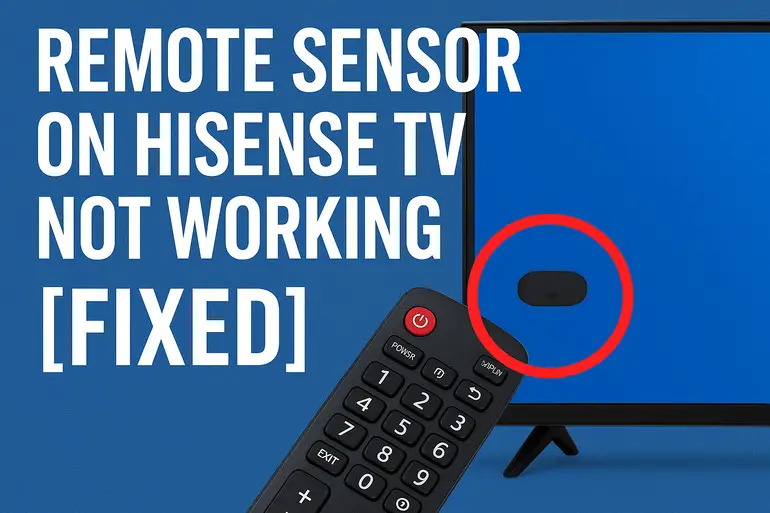
Your Hisense TV has a small receiver built into the front panel, usually near the bottom or side of the screen. This receiver picks up infrared signals from your remote control every time you press a button. Think of it like a tiny eye that watches for flashing light patterns you can’t see with your naked eye.
When this sensor stops working, your remote could be sending signals all day long and the TV simply won’t see them. The remote might be working perfectly fine, with fresh batteries and everything, but if the sensor can’t receive those invisible light pulses, you’re out of luck. Most people immediately blame the remote and start shopping for a new one, but the actual problem often lies with the TV itself.
The sensor can fail for several reasons. Sometimes it’s blocked by something physical. Other times, the TV’s internal software gets confused and stops processing the signals correctly. Dust, debris, or even certain lighting conditions can interfere with the sensor’s ability to do its job properly.
If you ignore this problem, you’ll be stuck using the physical buttons on your TV (if it even has them) or trying to control everything through a smartphone app. Neither option is convenient for everyday use. Plus, leaving the issue unresolved means missing out on features that require remote control access, like adjusting picture settings or accessing certain menu options that aren’t available through the basic buttons.
Remote Sensor on Hisense TV Not Working: Common Causes
Your remote sensor can stop working for various reasons, and pinpointing the exact cause helps you fix it faster. Let’s look at what typically triggers this annoying problem so you know what you’re dealing with.
1. Physical Obstructions Blocking the Sensor
Something as simple as a soundbar, decorative item, or even a piece of furniture can block the path between your remote and the TV’s sensor. The infrared signal travels in a straight line, so anything in the way creates an instant problem.
You might have recently rearranged your entertainment center or added new equipment without realizing it now sits directly in front of the sensor. Even transparent objects like glass or certain plastics can interfere with infrared signals, even though they look clear to your eyes.
Check the area around your TV’s front panel carefully. Look for anything that might be sitting too close or positioned awkwardly. Sometimes cables draped across the front of the TV can create enough of a barrier to mess up the signal reception.
2. Dust and Dirt Accumulation
Dust builds up everywhere in your home, and your TV’s remote sensor is no exception. A thin layer of dust might seem harmless, but it can actually scatter or absorb the infrared light before it reaches the actual sensor component.
This happens gradually over time, which is why the remote might work intermittently at first before failing completely. You press a button and sometimes it works, sometimes it doesn’t, making you think the batteries are dying when dust is the real culprit.
3. Software Glitches and Firmware Issues
Your Hisense TV runs on software, just like your phone or computer. Sometimes this software encounters bugs or gets stuck in a weird state that prevents it from properly processing remote signals. A recent firmware update might have introduced compatibility issues, or the TV’s memory might be overloaded from running too many apps in the background.
These glitches don’t damage anything physically, but they stop the sensor from communicating correctly with the rest of the TV’s systems. Your sensor picks up the signal just fine, but the TV’s brain can’t interpret what it’s receiving. This creates the same symptoms as a completely dead sensor, even though the hardware itself works perfectly.
4. Interference From Other Devices
Certain electronics emit their own infrared signals or electromagnetic interference that can confuse your TV’s sensor. Fluorescent lights, plasma lamps, some LED bulbs, and even direct sunlight can flood the sensor with so much infrared light that it can’t distinguish your remote’s signal from the background noise.
Gaming consoles, cable boxes, and other remotes in the same room can also create signal conflicts. If multiple devices try to communicate via infrared at the same time, your TV might pick up the wrong signals or get overwhelmed trying to process everything at once.
5. Hardware Failure or Loose Internal Connections
Sometimes the sensor itself develops a fault, or the connection between the sensor and the TV’s main board comes loose. This can happen from normal wear and tear over time, or from physical impact if the TV was moved or bumped.
Internal connections can also work themselves loose from temperature changes. Your TV heats up during use and cools down when off, causing tiny expansions and contractions in the components. After months or years, this can weaken solder joints or dislodge ribbon cables.
The good news is that even hardware issues don’t always require professional repair. Many connection problems can be fixed by power cycling the TV properly, which resets all the internal components and gives loose connections a chance to re-establish themselves.
Remote Sensor on Hisense TV Not Working: How to Fix
Getting your remote sensor working again usually takes just a few simple steps, and you can try these solutions right now without any special tools. Let’s go through the fixes that work for most people.
1. Clear Any Physical Obstructions
Walk up to your TV and take a good look at the front panel where the sensor sits. You’re looking for anything that could block the line of sight between your remote and that sensor. Move soundbars, speakers, picture frames, or decorative items away from the TV.
Also check if you’ve placed your TV inside an entertainment center with a lip or shelf that hangs over the front. Sometimes these architectural features create shadows or barriers that interfere with the remote signal. If you spot something blocking the sensor, move it at least a few inches away and test your remote again.
Try pointing your remote directly at the sensor from different angles. If it works from one position but not another, you’ve confirmed that something is blocking certain angles. Adjust your setup so there’s a clear, unobstructed path from where you normally sit to the TV’s sensor.
2. Clean the Remote Sensor Area
Grab a clean, soft microfiber cloth and gently wipe the entire front panel of your TV, paying special attention to the area where the sensor sits. Don’t use any cleaning sprays or liquids directly on the TV, as moisture can cause more problems.
If you notice stubborn dust or grime, slightly dampen the cloth with water (not soaking wet, just barely moist) and wipe again. Make sure to dry the area completely afterward with a dry section of the cloth.
For hard-to-reach crevices around the sensor, you can use a can of compressed air. Hold it upright and use short bursts to blow away dust without pushing it further into the TV. This cleaning process takes less than two minutes but solves the problem surprisingly often.
3. Power Cycle Your Hisense TV Properly
This isn’t just turning your TV off and on with the remote. You need to fully discharge any residual power in the system. Start by turning off your TV using the physical power button on the unit itself.
Once it’s off, unplug the power cable from the wall outlet. Now here’s the important part: wait for a full 60 seconds. This gives all the capacitors inside the TV time to drain completely. While you’re waiting, press and hold the power button on the TV for about 10 seconds to help discharge any remaining electricity.
After the minute is up, plug the TV back in and turn it on. This process resets the TV’s internal systems, clears out software glitches, and often fixes sensor issues caused by firmware bugs or memory problems. Test your remote and see if the sensor responds now.
4. Check for Infrared Interference
Turn off any bright lights near your TV, especially fluorescent or plasma bulbs. Close curtains if sunlight is hitting your TV directly. These light sources can overwhelm the sensor with infrared radiation.
Also look for other devices that might use infrared remotes in the same room. Try turning off your cable box, gaming console, or DVD player temporarily to see if they’re causing interference. If the remote suddenly works after eliminating a specific device, you’ve found your culprit.
You can also test if your remote is actually sending signals by using your smartphone camera. Point the remote at your phone’s camera, press any button, and look at your phone’s screen. You should see a flashing light coming from the remote’s front LED. If you don’t see this light, the problem is with your remote, not the TV’s sensor.
5. Update Your TV’s Firmware
Outdated firmware can cause all sorts of sensor problems. Press the physical buttons on your TV to access the settings menu (or use the Hisense smartphone app if you have it installed). Look for the System or About section in the settings.
Find the option labeled Software Update, Firmware Update, or Check for Updates. If an update is available, let it download and install. Your TV will probably restart a few times during this process.
Keep your TV plugged in and don’t turn it off during the update, as interrupting the process can create bigger problems. Once the update finishes and your TV restarts normally, test the remote sensor again.
6. Factory Reset Your Hisense TV
If nothing else works, a factory reset often clears up stubborn software issues. This will erase all your settings, installed apps, and login information, so use this as a last resort. Access your TV’s settings menu using the physical buttons.
Navigate to System, then find Reset or Factory Reset. Your TV will ask you to confirm this choice, usually by entering a PIN (the default is often 0000 or 1234). Select Yes or Confirm to proceed.
The TV will restart and go through its initial setup process again, just like when you first bought it. You’ll need to reconnect to your WiFi, sign back into your streaming apps, and adjust your picture settings. But if a software problem was blocking the sensor, this wipes it out completely.
7. Contact a Qualified Technician
If you’ve tried everything above and your remote sensor still doesn’t work, you’re probably dealing with a hardware failure that requires professional repair. The sensor component itself might be dead, or there could be a problem with the TV’s main circuit board.
Reach out to Hisense customer support or find a certified TV repair technician in your area. Explain what you’ve already tried so they don’t waste time repeating the same steps. In some cases, if your TV is still under warranty, Hisense might repair or replace it at no cost to you.
Wrapping Up
A non-working remote sensor on your Hisense TV feels like a major headache, but as you’ve seen, most causes have simple fixes you can handle yourself. From clearing obstructions and cleaning dust to power cycling and updating firmware, these solutions work for the majority of sensor problems.
Start with the quickest fixes first and work your way through the list. Most people find their answer in the first few steps, getting back to normal viewing within minutes. If you do end up needing professional help, at least you’ll know you gave it your best shot and can explain exactly what you tried.