You grab your Sky Q remote, press the volume button, and… nothing. Your Sony TV stays stubbornly at the same volume level while you’re jabbing at the button like it owes you money. It’s one of those small annoyances that can turn a relaxing evening into a frustrating experience.
The pairing between your Sky Q remote and Sony TV should be seamless, but sometimes technology has other plans. When the volume control stops responding, you’re stuck either watching shows at the wrong volume or hunting for your TV’s original remote (which, let’s be honest, you probably can’t find).
This guide walks you through exactly why this happens and, more importantly, how to fix it yourself without calling for help or spending hours on hold with customer support.
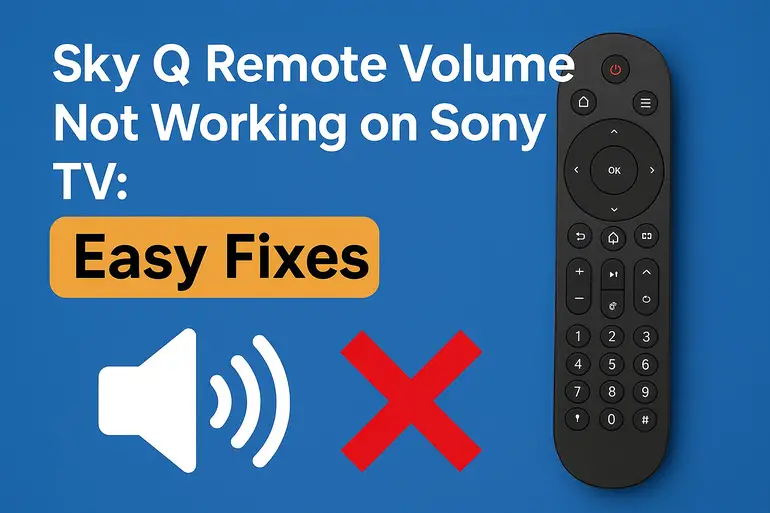
Why Your Sky Q Remote Won’t Control Sony TV Volume
The Sky Q remote uses infrared signals to communicate with your Sony TV, separate from how it talks to your Sky Q box. Think of it like speaking two different languages. The remote needs to know the specific “dialect” your Sony TV understands. When that connection breaks down, your volume buttons become useless decorations.
Most people assume their remote is broken or their TV has developed a fault. Usually, that’s not the case. The issue typically sits in the software layer where your remote and TV shake hands. Your remote might have forgotten which Sony model it’s paired with, or the pairing itself might have corrupted over time.
Your Sky Q box receives commands just fine through radio frequency, which is why channel changing and menu navigation still work perfectly. It’s only the TV-specific functions like volume and power that rely on infrared, making them vulnerable to pairing issues.
If left unfixed, you’ll either need to keep your Sony remote handy at all times or adjust volume through your TV’s menu system. Neither option is ideal when you just want to watch your favorite shows without the hassle.
Sky Q Remote Volume Not Working on Sony TV: Likely Causes
Several factors can disrupt the volume control between your Sky Q remote and Sony TV. Let’s break down what’s actually going wrong behind the scenes.
1. Lost Remote Pairing
Your Sky Q remote stores the infrared codes for your specific Sony TV model in its memory. Sometimes this information gets wiped or corrupted, usually after a software update or if your remote runs completely out of battery power.
When pairing information disappears, your remote essentially forgets it ever knew how to talk to your TV. The Sky Q functions continue working because those use a different communication method, but TV controls go silent.
This is the most common culprit and, thankfully, one of the easiest to fix with a simple re-pairing process.
2. Infrared Signal Obstruction
Your remote sends invisible light beams to your TV’s sensor, typically located near the Sony logo or bottom edge of the screen. Anything blocking this line of sight prevents the signal from reaching its destination.
Common blockers include soundbars placed directly in front of the TV sensor, decorative items on your TV stand, or even thick layers of dust covering the sensor area. Sometimes the issue is on the remote’s end, where dirt or grime covers the transmitter at the top of your remote.
3. Outdated Sky Q Box Software
Sky regularly pushes software updates to improve functionality and fix bugs. If your Sky Q box is running old software, it might not properly sync with your remote’s programming. This creates a mismatch where your remote thinks it’s sending the right signals, but the box isn’t translating them correctly to your TV.
Your box usually updates automatically overnight, but if it’s been unplugged frequently or has connectivity issues, it might miss critical updates. These updates sometimes include fixes for specific TV brands like Sony that improve compatibility.
4. Incorrect TV Code Selection
Sky Q remotes can control thousands of different TV models using specific code sets. Your remote might be using a generic Sony code instead of the precise one for your TV model. Generic codes often handle basic functions but fail on volume control.
Different Sony TV series (Bravia, XBR, etc.) sometimes require different codes even though they’re all made by the same manufacturer. Using code 0810 when your TV needs 0834 means your remote is essentially speaking the wrong version of Sony’s language.
5. Hardware Failure in the Remote
While less common, your remote’s infrared transmitter might be failing. The circuit board inside could have damage from being dropped, or the LED that sends infrared signals might be dying. Battery compartment corrosion can also interrupt the power supply to the infrared components while leaving the radio frequency parts working.
You can test this by pointing your remote at your phone’s camera and pressing volume buttons. You should see a small purple or white light flash on your phone screen when the infrared transmitter fires. No light means hardware trouble.
Sky Q Remote Volume Not Working on Sony TV: How to Fix
Getting your volume control back is usually straightforward once you know what steps to take. Let’s work through the solutions from simplest to more involved.
1. Re-pair Your Remote with Your Sony TV
Press and hold the Home button on your Sky Q remote for about three seconds until the LED at the top starts flashing. This puts your remote into pairing mode. Next, press the numbers 9, 9, 1 in sequence. The LED should flash twice to confirm.
Your remote is now ready to learn your TV’s code. Press and hold the Select button (the big button in the middle) and the number 1 button together until the LED blinks twice. This wipes the old TV pairing.
Now enter the code for your specific Sony TV model. Common codes include 0810, 0834, 1505, and 1825. After entering four digits, press Select. If successful, the LED blinks twice. Test your volume buttons. If they don’t work, repeat the process with a different code until you find the right match for your model.
2. Clear Line of Sight Issues
Walk over to your TV and look for the infrared sensor. On most Sony TVs, it’s a small dark window near the bottom center or right side of the bezel. Check if anything is blocking it from your usual viewing position.
Remove any objects in the way and give the sensor area a gentle wipe with a microfiber cloth. Dust buildup is sneaky and accumulates faster than you’d think. Do the same for the top of your Sky Q remote where the infrared transmitter lives.
Try your volume buttons again from different positions in the room. If it works from close up but not from your couch, you might have a weak infrared signal that needs troubleshooting.
3. Power Cycle Everything
Unplug your Sky Q box from the wall socket and turn off your Sony TV using its power button, not just the remote. Wait a full 30 seconds. This isn’t just about turning things off and on again. You’re clearing temporary memory and allowing capacitors to fully discharge.
Plug your Sky Q box back in first and let it fully boot up, which takes about two minutes. Then turn on your TV. Once everything is running, test your remote’s volume control.
This reset often clears software glitches causing communication problems between devices. It’s the tech equivalent of taking a deep breath and starting fresh.
4. Update Your Sky Q Box Software
Press the Home button on your remote and scroll to Settings. Select Setup, then System Info. Look at the software version displayed. Now go back to Settings, select Setup again, and choose Software Update.
If an update is available, let it download and install. Your box will restart automatically. This process can take 10 to 15 minutes, so don’t interrupt it.
After updating, you might need to re-pair your remote using the steps from solution one. Software updates sometimes reset hardware pairings as a side effect.
5. Try Alternative Sony TV Codes
Sony uses multiple code families across their TV range. Start with code 0810 and work through this sequence: 0834, 1505, 1825, 0000, 1010. Each time you enter a code, test both volume up and volume down before moving to the next.
Some Sony TVs respond to codes meant for slightly different models. You might find that code 1505, officially for newer Bravia models, works on your older unit because Sony reuses infrared protocols across generations. Keep a note of which code works so you can quickly re-enter it if needed later.
6. Replace Remote Batteries and Test Hardware
Pop out your remote batteries and check the contacts for any green or white crusty buildup. That’s corrosion, and it blocks proper electrical connection. Clean it gently with a cotton swab dipped in white vinegar, then dry thoroughly.
Put in fresh batteries, making sure they’re installed correctly. Now grab your smartphone and open the camera app. Point your remote at the camera lens and press volume buttons while watching your phone screen. You should see a light flash each time you press. If there’s no light, your remote’s infrared transmitter is faulty and you’ll need a replacement remote.
7. Contact Sky Customer Support
If none of these fixes work, your issue might be more complex than a typical pairing problem. Sky’s technical team can run remote diagnostics on your box and sometimes push specialized updates that aren’t available through standard channels.
They can also verify if your remote is faulty and needs replacement under warranty. Have your account details ready and be prepared to describe exactly which troubleshooting steps you’ve already tried. This saves time and helps them identify less common issues faster.
Wrapping Up
Volume control issues between Sky Q remotes and Sony TVs almost always come down to lost pairing or communication glitches rather than actual hardware failure. Most people fix the problem within minutes using a simple re-pairing process.
Start with the easiest solutions like re-pairing and clearing obstructions before moving to more complex troubleshooting. Keep that working TV code written down somewhere safe for future reference. Getting your remote working properly again means you can get back to enjoying your shows without fumbling for multiple controllers or adjusting volume through clunky TV menus